Troubleshooting
This section aims to help users with issues that may arise while using the VRE-Middleware package.
Before you proceed with the steps below please make sure that you have checked the documentation and the FAQs for possible solutions.
Troubleshooting basically consists of two steps:
Collect the most relevant content from any error messages given as output, from either the Jupyter Notebook/Lab log console or the command line interface.
Create an issue in the GitLab repository, using all gathered information, to report the problem and request assistance from the developers.
This approach is structured to ensure all issues are clearly documented and efficiently addressed.
Collecting console output
The scope of this section is the gathering of useful information from, oftentimes, cryptic error messages from unsuccessful runs of the VRE-Middleware package. For illustrative purposes the following sample script was employed as input in the following cases:
a Jupyter-lab session (can be used also for the Jupyter-notebook);
a regular python interpreter run of a file.py script; The script is intentionally incorrect such that a somewhat ugly error message is printed.
from fireworks import LaunchPad
from fireworks.fw_config import LAUNCHPAD_LOC

lpad = LaunchPad.from_file(LAUNCHPAD_LOC)

from virtmat.middleware.query.wfquery import WFQuery
from virtmat.middleware.engine.wfengine import WFEngine

wfq = WFQuery(lpad, wf_query={}, fw_query={'fw_id': 115})
print(wfq.get_fw_info())

#wfe = WFEngine(lpad, wfq) #This line does not cause an error
wfe = WFEngine(lpad, wf_query=wfq)#This causes a very ugly error

from fireworks import Workflow
wfe.add_workflow(fw_id=97)
wfe.status_summary()
Also worth noting is that the following examples were prepared using an already populated MongoDB database, so please adapt accordingly if you wish to reproduce the example.
From the application programming interface (API) used in Jupyter
After running the cell containing the line
wfe = WFEngine(lpad, wf_query=wfq)
A long error message will be displayed in a red-colored output cell which should look similar to:

The message Traceback (most recent call last) indicates that an error occurred during the execution of the code.
In this traceback function calls are listed from oldest to newest, which effectively means that the function call that caused the problem is listed at the bottom of the error message:

The traceback shows the name of the file and the line number where the function call was made, followed by the name of the function that was called. The last line of the traceback shows the type of error and a description. This is the section of the traceback that should be included when reporting a problem, whether it is via creation of a GitLab issue or the virtmat-tools distribution list.
From the API used in a console application
If instead the API is used in a console application, for example in a script file test_middleware.py
$> python test_middleware.py
an error traceback will also be produced.
The general structure is similar to that generated from Jupyter.
The most relevant information will be printed at the bottom of the error traceback:

From the graphical user interface (GUI)
Non-wrapped errors from the Ipywidgets GUI, running in Jupyter lab, will typically not be printed to an output cell.
Instead these are sent directly to the log console which can be displayed either in View > Show Log Console or by clicking in the corresponding icon at the bottom of the window:

Once displayed, the error message can be inspected from within this new pane.
The traceback will look very similar to that of a regular Jupyter lab output cell:

How to create an issue to report a problem
The first step is to go to the VRE-Middleware’s GitLab repository page.
Look for the + icon on the top left to the browser window and click on it.
This will display a list of options available for this repository.
Select the New issue option under the category named “In this project”:

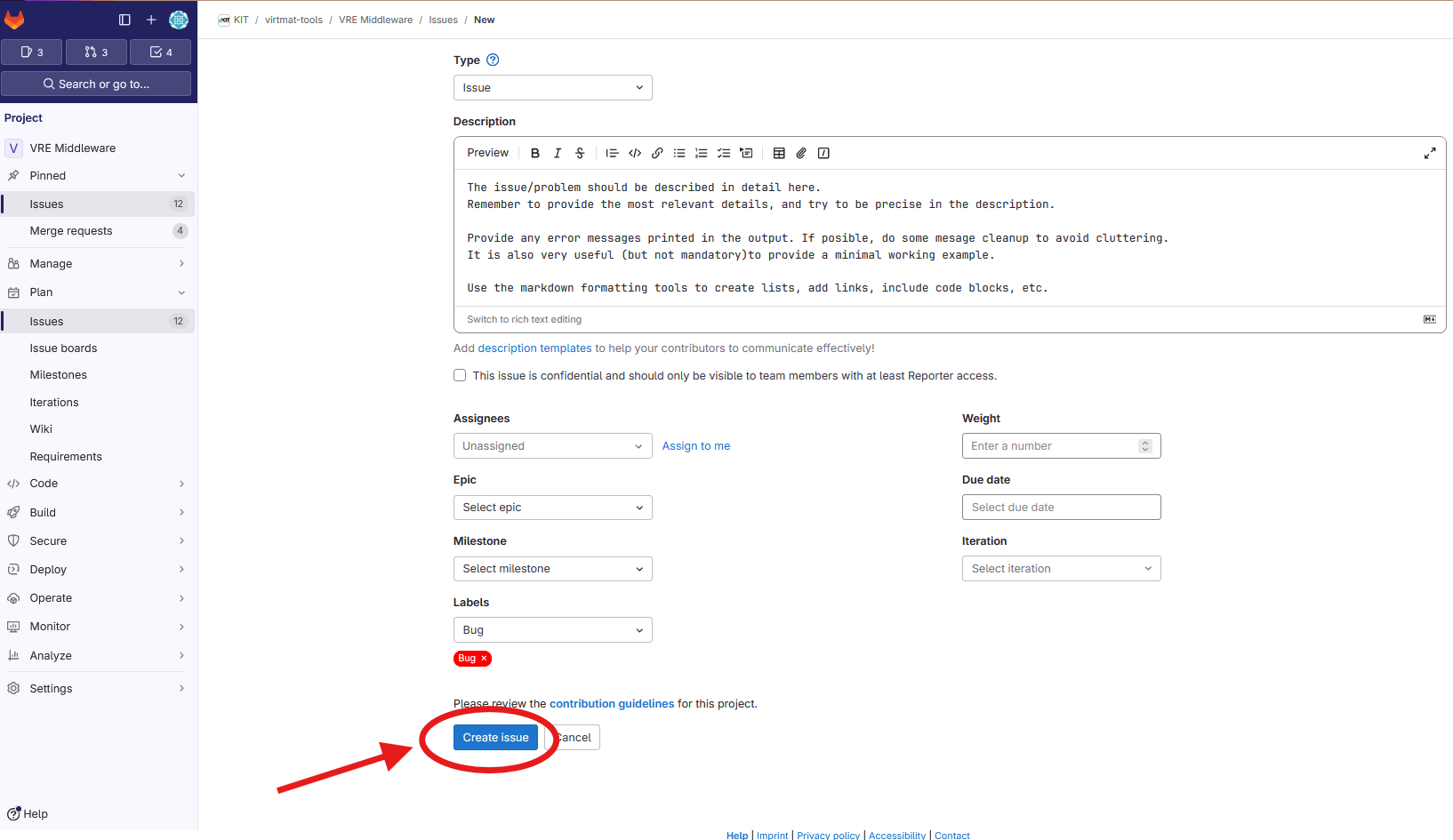
Next, an empty “New Issue” fill-out form will appear:
 Here is where the issue should be given a title
Every issue should be given, at least, a title and a ** detailed description**.
Giving a clear, thorough description of the problem is highly encouraged to help the developers find a solution.
The description of the issue should include:
Here is where the issue should be given a title
Every issue should be given, at least, a title and a ** detailed description**.
Giving a clear, thorough description of the problem is highly encouraged to help the developers find a solution.
The description of the issue should include:
The detailed steps to reproduce the issue. If possible provide minimal input leading to the problem.
A description of the actual behavior/result from the failed run. Did the program crash? Are the results incorrect? Please provide any error messages from the console output. If applicable, screenshots can also be included.
A description of the expected behavior or result.
An overview of the conditions under which the problem occurred: operating system, python version, installation method and version of the vre-language package, loaded modules, etc.
Any accounts of work-around solutions found by the user. Please provide a minimal example to avoid the issue.
The Labels field contains a list of categories which can help to differentiate between issue types:
 Amongst them, the most relevant two for the sort of issues addressed in this guide are:
Bugto report a problem in package’s functionality due to some coding error,Featureto request a missing feature that could benefit the package and user community. Of course other labels can be used, depending on the nature of the issue being reported. Labels are non-mandatory and can also be left unselected.
Once all issue-relevant information has been added and reviewed, the process can be finalized by clicking on the Create issue button:
Support contact
An alternative to creating a GitLab issue to report a problem is to request support from the developing team via the virtmat-tools distribution list. In such case, users should provide the same information outlined above for opening and issue.